Turn a Tablet into Digital Signage for Your Small Business
Give your counter or reception screen a useful job. Learn how to plan simple digital signage with images, clear messages, and customer-friendly QR codes.
Start with one useful message
A screen does not need to show everything your business does. It needs to help someone nearby. A café might show its lunch special. A salon could invite visitors to ask about a service. A reception desk might explain where to check in.
Before choosing an image, finish this sentence: “When someone sees this screen, I want them to…” Your answer might be notice an offer, ask a question, or scan a code. One clear goal makes the rest much easier.
Give your screen a good home
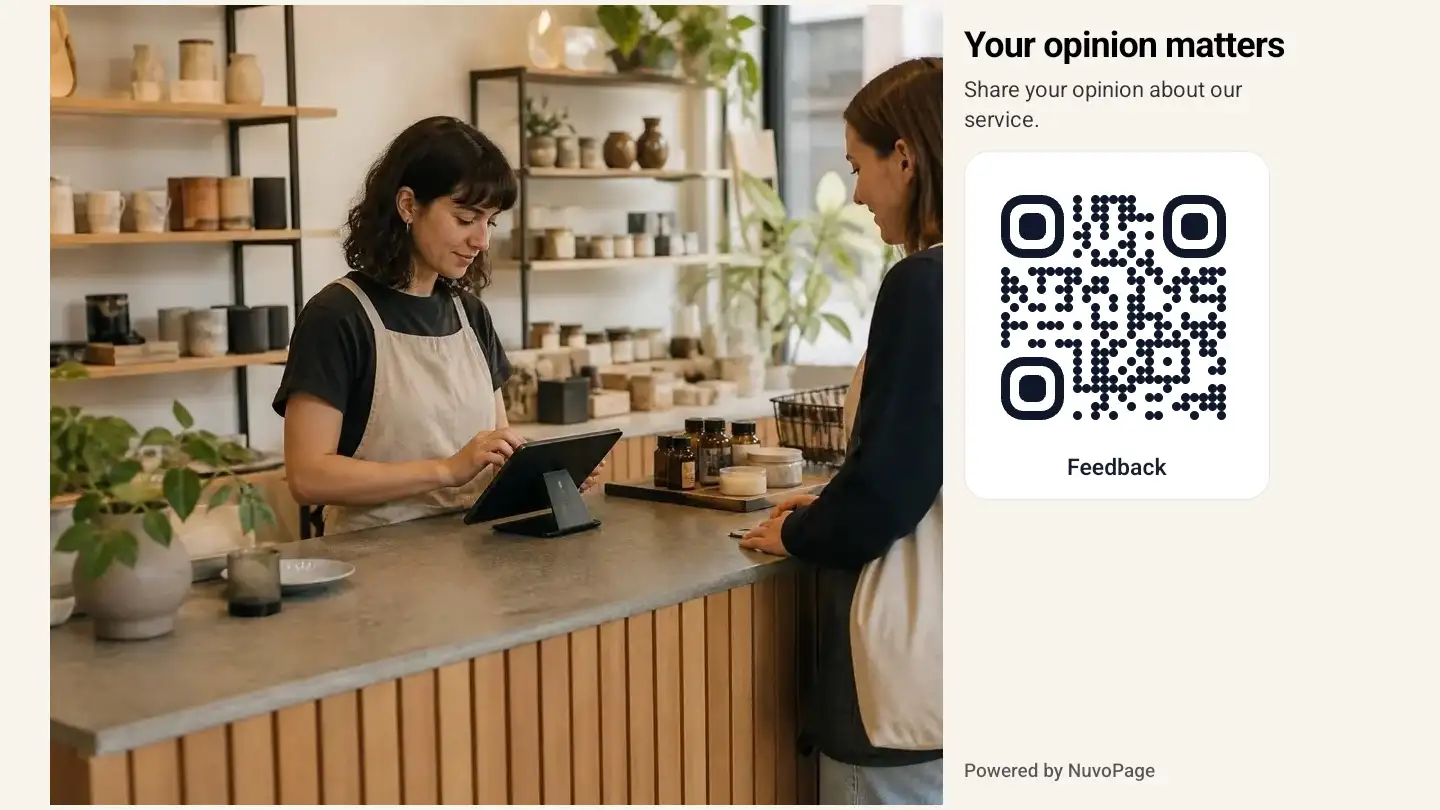
Place the tablet where people naturally pause, such as a counter or waiting area. Check the view from a customer’s position. Bright windows can create glare, and a beautiful image is not useful if the text is too small to read.
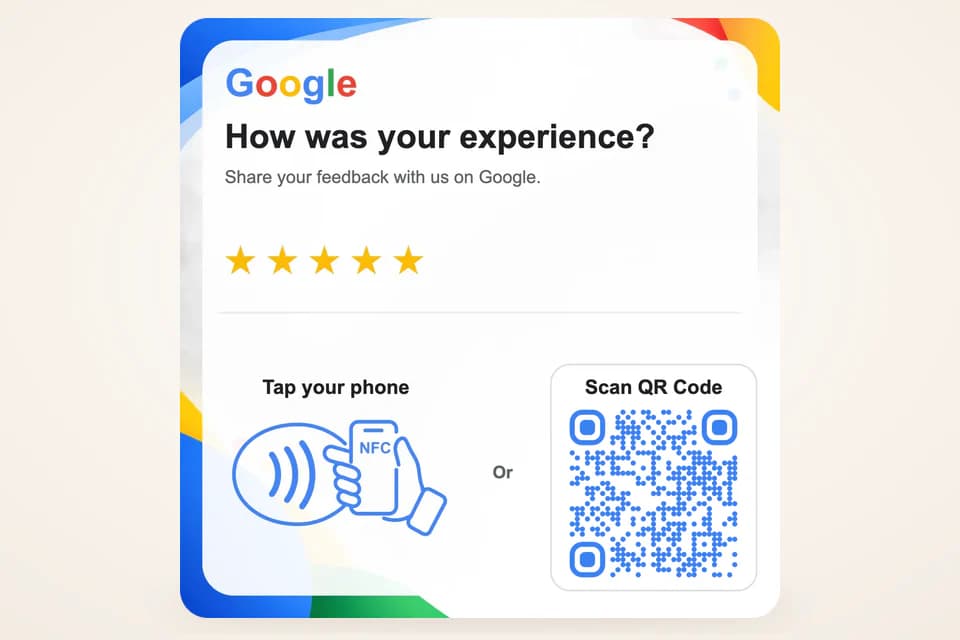
Use a stable stand and keep charging cables tidy. If the screen is out of reach, choose QR codes instead of touch buttons. Test a code from the distance where visitors will actually stand, using more than one phone if possible.
Build a small, readable slideshow
Start with two or three images. Give each one a single purpose: welcome people, explain an offer, or suggest a next step. Use images you own or have permission to display. Avoid putting a whole flyer of tiny text on the screen.
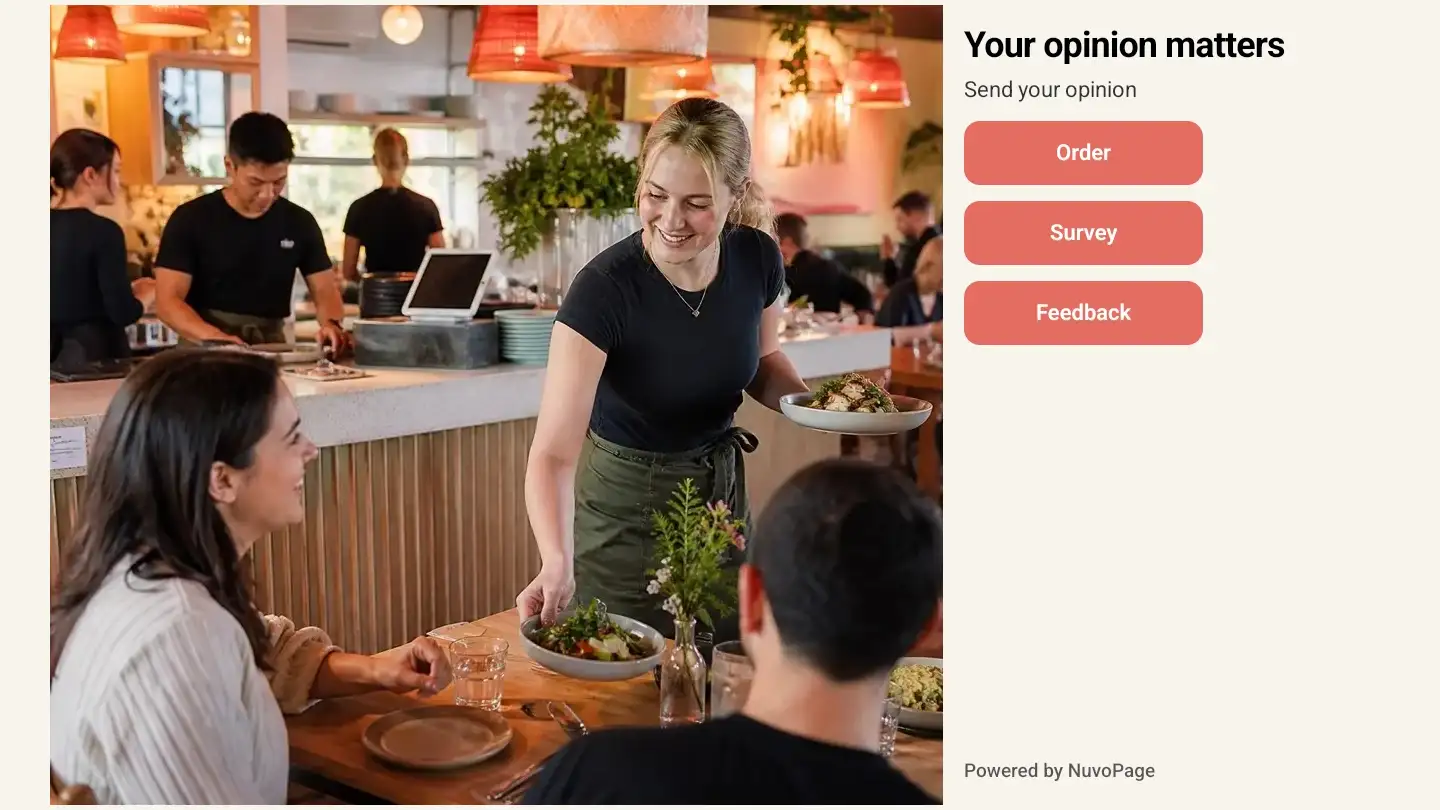
In NuvoPage Signage, you can show an image on its own or place it beside a headline and description. Left and right layouts leave room for customer actions. Portrait and landscape arrangements adapt to the device, so check your content in the orientation you plan to use.
Give people time to understand
Choose a display duration between 5 and 30 seconds. A short welcome may need less time than an offer with details. Leave enough time for someone to notice the screen, read the message, and scan a QR code without feeling rushed.
Fade and Slide transitions can make the change feel gentler. The selected display duration begins after the entrance animation finishes. If only one image is eligible to show, it stays on screen instead of repeatedly transitioning.
Keep offers current
Use optional start and end dates for seasonal messages. Scheduling follows your workspace time zone and does not require an exact time of day. Remember to check that your offer details and linked page are still correct.
Publish changes from your dashboard. Players check when the app launches. While connected, Reload content in Screen Controls is available manually once every 24 hours; there are no scheduled content checks. Downloaded images can continue playing offline, but opening customer pages needs internet.
Try one screen first
Free includes one connected screen with up to three images. Choose from the included image library; uploading your own images requires a paid plan with available storage. A Contact Us page gives Free users a simple way to collect enquiries.
The separate NuvoPage player runs on compatible Android or iOS devices. Check player availability before planning your setup; the marketing page does not yet offer app-store download links. Explore Signage to see the real interface, or compare plans when you need more room.