Make Customer Reviews Easier with NuvoPage QR and NFC Review Cards
Help customers share their experience with NuvoPage Review Cards. Learn how QR codes, NFC taps, and reusable links make asking for reviews simpler.
A small invitation at the right moment
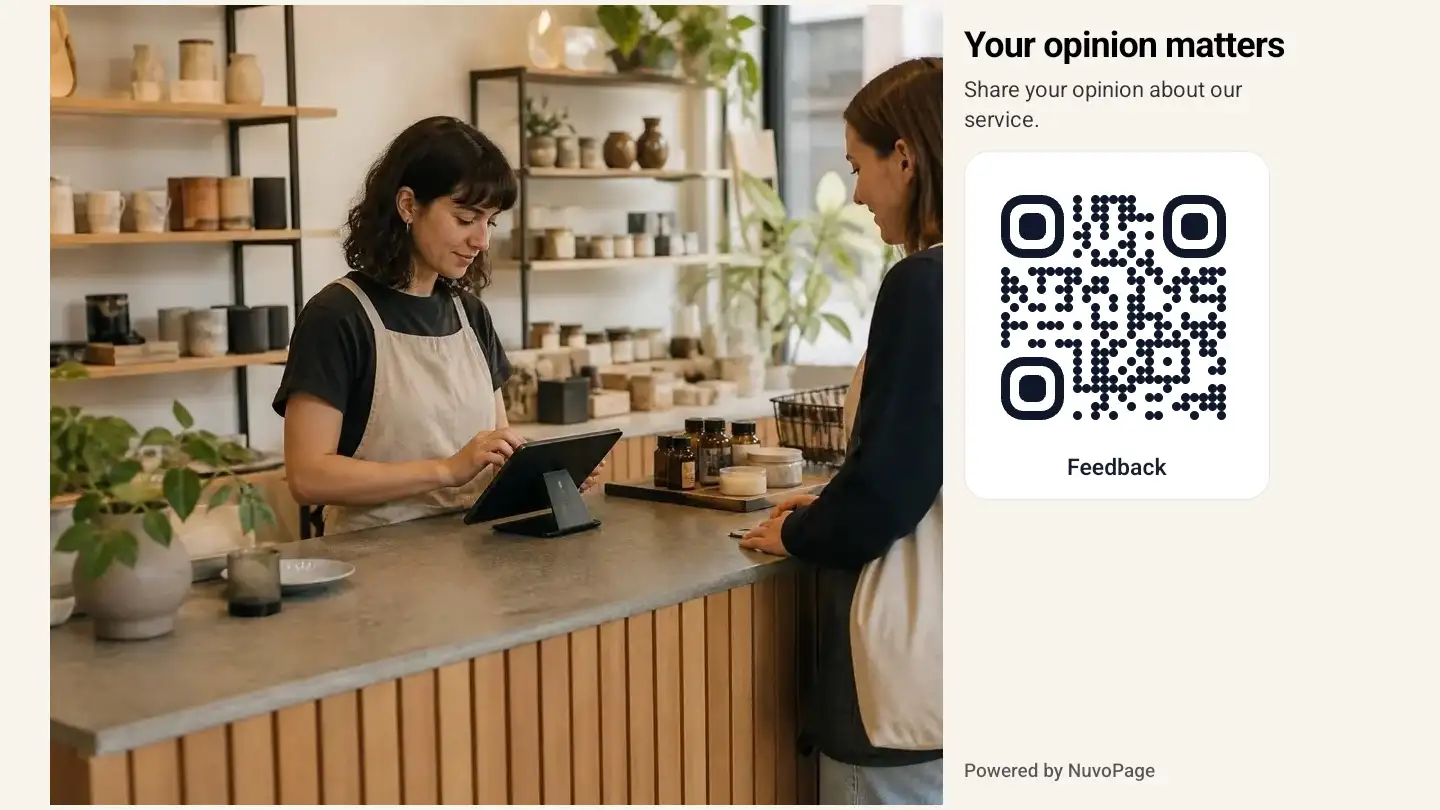
A customer has just finished an appointment, collected an order, or received help from your team. Before leaving, they say thank you. You would like to invite them to share their experience, but explaining how to find your business online can make a simple conversation feel unnecessarily complicated.
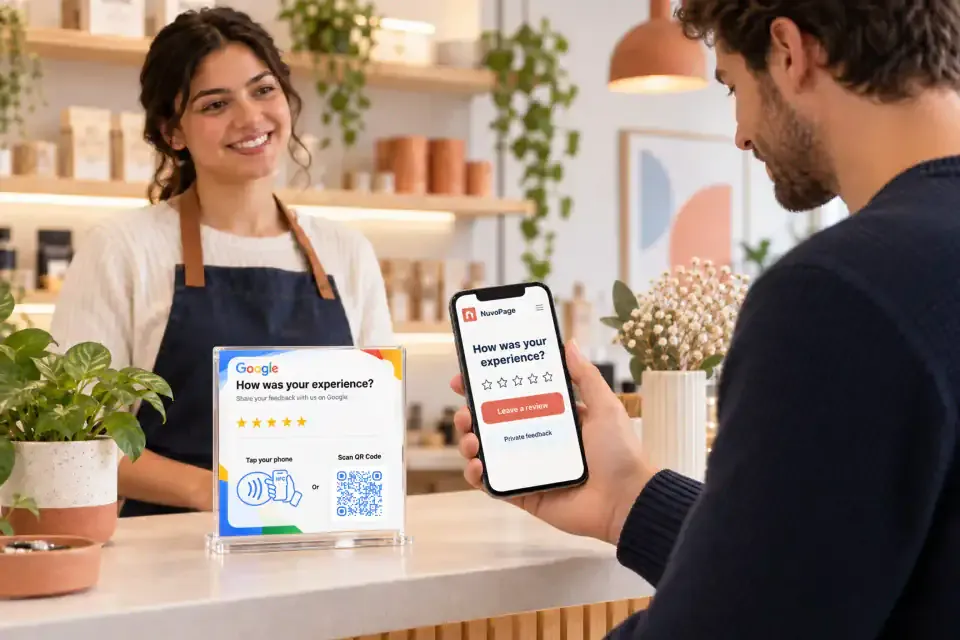
A Review Card gives that invitation a clear next step. The customer scans a QR code or taps an NFC-enabled card with a compatible phone, then follows the link to your chosen destination. They can decide whether to continue and what they want to say.
NuvoPage brings this physical invitation together with a manageable online destination. Your card becomes a convenient connection between an everyday customer interaction and the place where that customer can leave a review or share feedback.
What is a Review Card?
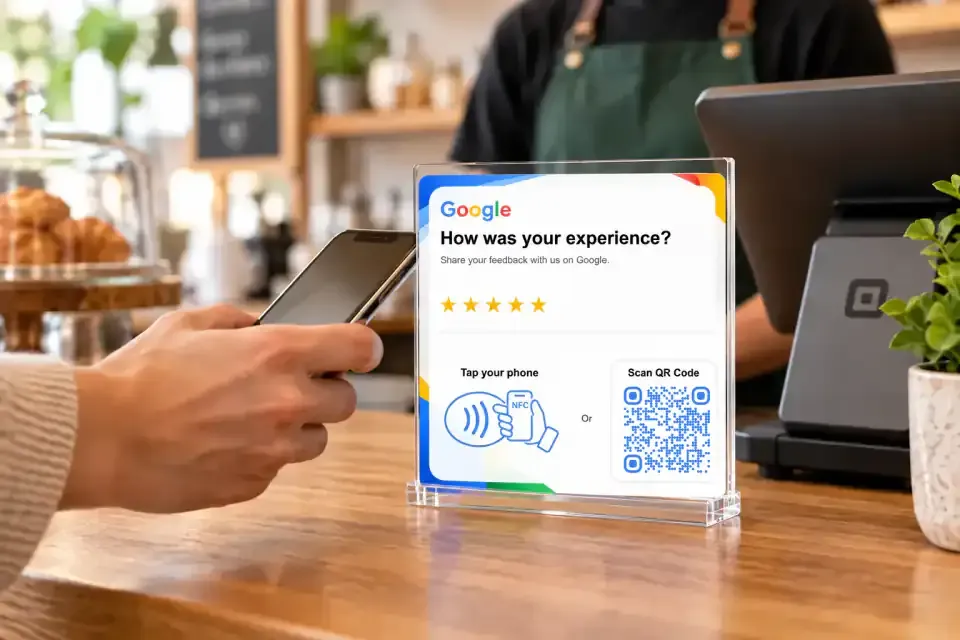
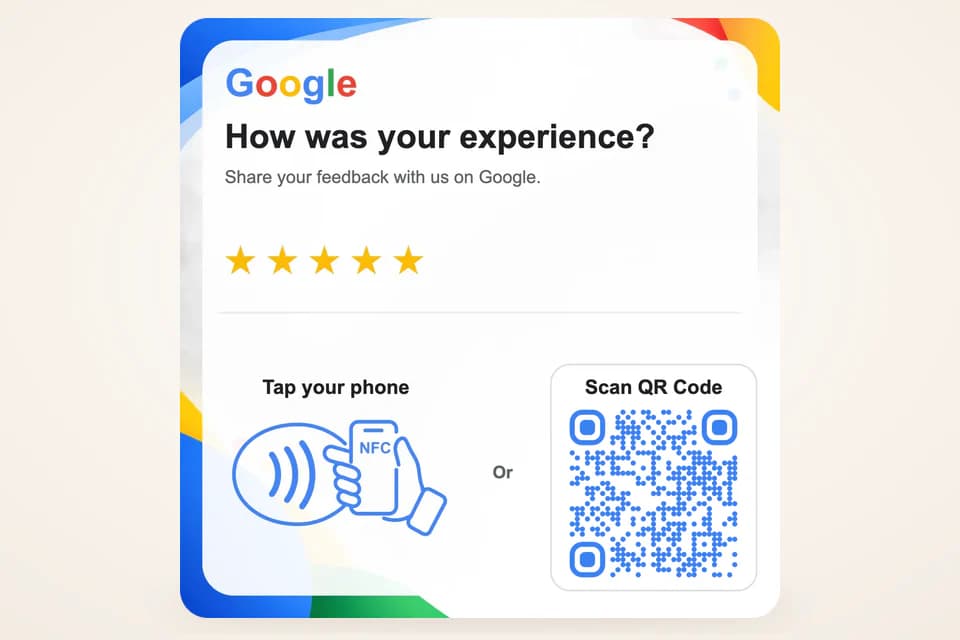
A Review Card is a physical card, sign, or similar display that helps customers reach your review destination. A printed QR code opens a link when scanned. An NFC-enabled product can open a link when a compatible phone is held near its reading area.
The card might sit beside a payment terminal, stand on a reception desk, or travel with a service professional. Its purpose should be immediately understandable: identify the business, invite the customer to share their experience, and show how to continue.
In NuvoPage, My Cards manages physical QR and NFC products connected to a NuvoPage link or website. My Links provides reusable destinations that can be updated after printing. Together, these tools let a physical card remain useful while you manage what visitors reach online.
Give customers a short path to the right place
Think about the difference between saying “Find us online” and providing a clearly labelled card. The first instruction leaves several decisions to the customer. Which platform? Which search result? Which business location? Where is the review button?
A review destination removes some of that searching. For a business using Google reviews, start with the review link supplied through its Business Profile. Google provides a way to copy that link and download a QR code from the profile’s review-sharing controls. Google’s instructions for creating a review link explain where to find it.
Check the destination before connecting your card. The business name and location should match the place the customer actually visited. A beautifully printed card is only useful when it takes people to the correct destination.
Choose a direct link or a focused page
There are two useful approaches to the experience after a scan.
A direct review link suits a business with one clear objective: help customers reach a particular review platform. It keeps the journey short and avoids asking visitors to choose between unrelated options.
A focused NuvoPage page can make sense when customers need a choice, such as opening a public review destination or sending a private message to the business. Keep that page brief. A recognisable business name, a short welcome, and clearly labelled actions are usually enough.
Public reviews and private feedback serve different purposes. A private form submission is not automatically published as a Google review. Make that distinction clear so visitors understand where their words will go before they submit them.
Offer QR and NFC as convenient alternatives
A QR code gives customers a visible way to open the link using their phone’s camera or scanning function. NFC provides another option on compatible devices: hold the phone near the card and follow the notification.
If your card includes both, explain both with a short instruction such as “Scan or tap to share your experience.” Mark the NFC area clearly so customers know where to hold their phone.
Test the actual card with the phones available to your team. Customers should not need a demonstration lasting longer than the task itself. Keep the QR option easy to see, and provide a readable short link when practical for someone who prefers another way to open the destination.
Be clear about accounts and posting
Visitors do not need a NuvoPage account to view a public NuvoPage page. However, the platform receiving a public review may have its own requirements. Google requires customers to sign in to a Google Account before leaving a review. Google’s review guidance confirms this requirement.
That means a scan or tap opens the journey; it does not automatically submit a review. The customer still chooses a rating, writes any comments, and completes the platform’s process.
Avoid promising “one-tap reviews” if the phrase suggests a review is posted immediately. A more accurate message is “Tap to open our review page.” Clear expectations make the card easier to trust and reduce confusion when another screen appears.
Invite honest feedback from every customer
Use wording that welcomes the customer’s actual experience. “Share your experience” and “Your feedback is welcome” leave room for an honest response. Staff can make the same invitation naturally after completing a transaction or service.
Keep the invitation voluntary. Do not watch over a customer’s shoulder, ask them to show their rating, or make completing a review part of receiving normal service. Give them space to choose whether and when to respond.
Google prohibits incentives such as discounts or free goods in exchange for reviews. Its policies also prohibit selectively soliciting positive reviews or discouraging negative ones. Keep public review access available regardless of a customer’s satisfaction or any preliminary rating. Google Maps content policy describes these restrictions.
Keep your printed card useful as things change
A printed QR code contains a fixed value. If that value is a direct destination, changing the destination generally means producing a different code. A reusable NuvoPage link adds a managed step: the printed code opens that link, and you can update where the link sends visitors.
This is useful when correcting a destination or changing the page connected to an existing card. You can manage the online experience without immediately redesigning the physical material.
Keep changes consistent with what the card promises. A card labelled for reviews should continue to lead to a relevant review experience. After any update, scan the printed card again and check the full journey. Reusability is most helpful when the customer still gets what they expected.
Make the card part of a listening habit
Choose someone in the business to check incoming reviews and private feedback regularly. A card can help people reach you, but the useful work continues after they respond.
For your own review routine, look for repeated observations about waiting, communication, product information, or service quality. Bring relevant themes to the team and choose a practical improvement. Avoid turning every individual comment into an immediate policy change; patterns and context matter.
A Review Card cannot guarantee a particular number of reviews or a better rating. Its value is simpler: it gives customers a clear opportunity to speak. Start with one well-placed NuvoPage Review Card, connect the right destination, test it, and make an honest invitation part of your everyday service.