Create a Simple Self-Service Kiosk for Enquiries, Bookings, and Orders
Help customers take the next step on a touchscreen. Connect NuvoPage pages to a simple kiosk for enquiries, booking requests, orders, and feedback.
Make one task easier
An interactive kiosk is a screen that lets people do something, rather than only watch. For a small business, that could mean sending an enquiry, requesting an appointment, or placing an order.
You do not need a complicated menu to begin. Choose one task that customers regularly ask about. A useful kiosk answers a clear question: “What can I do here?” A short heading and an obvious button are often enough.
Start with an enquiry at reception
Imagine a visitor arriving while your team is busy. A tablet can show a welcome image and a button labelled “Ask us a question.” That button opens your published Contact Us page, where the visitor leaves the details your team needs.
Keep the form short. Ask for a name, a way to reply, and the question. Explain when the visitor can expect a response, using a timeframe your team can actually meet. This is a practical starting point on Free, which includes the Contact Us page type.
Add bookings or orders when you need them
With Starter or above, you can create Booking and Order pages. A salon might offer “Request an appointment,” while a café could show “View the menu and order.” The button opens the relevant published page on the same device.
Be clear about what happens after submission. A request is not automatically a confirmed appointment, and an order form does not by itself mean online payment is available. Write your instructions to match your actual business process, including how customers receive confirmation or pay.
Keep the choices short
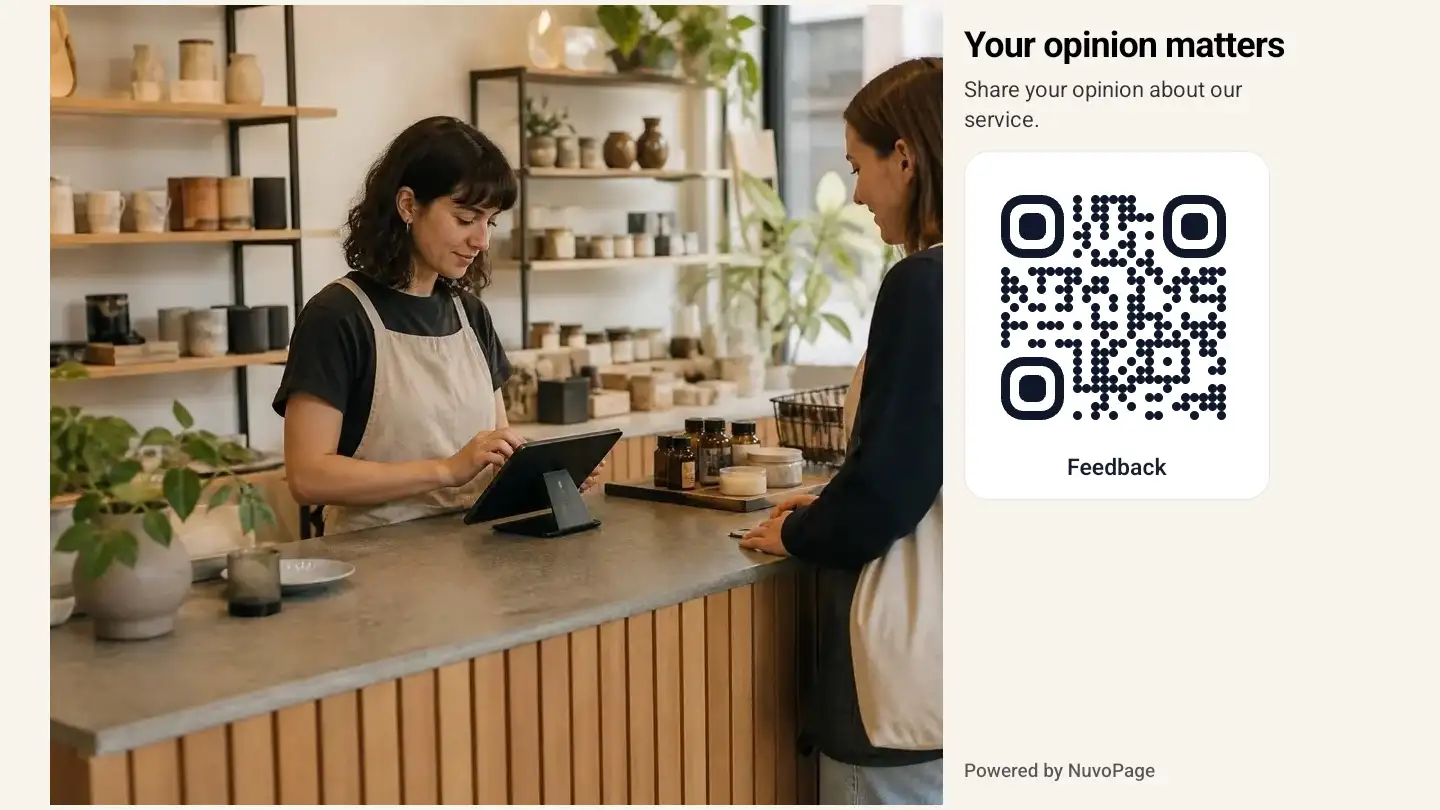
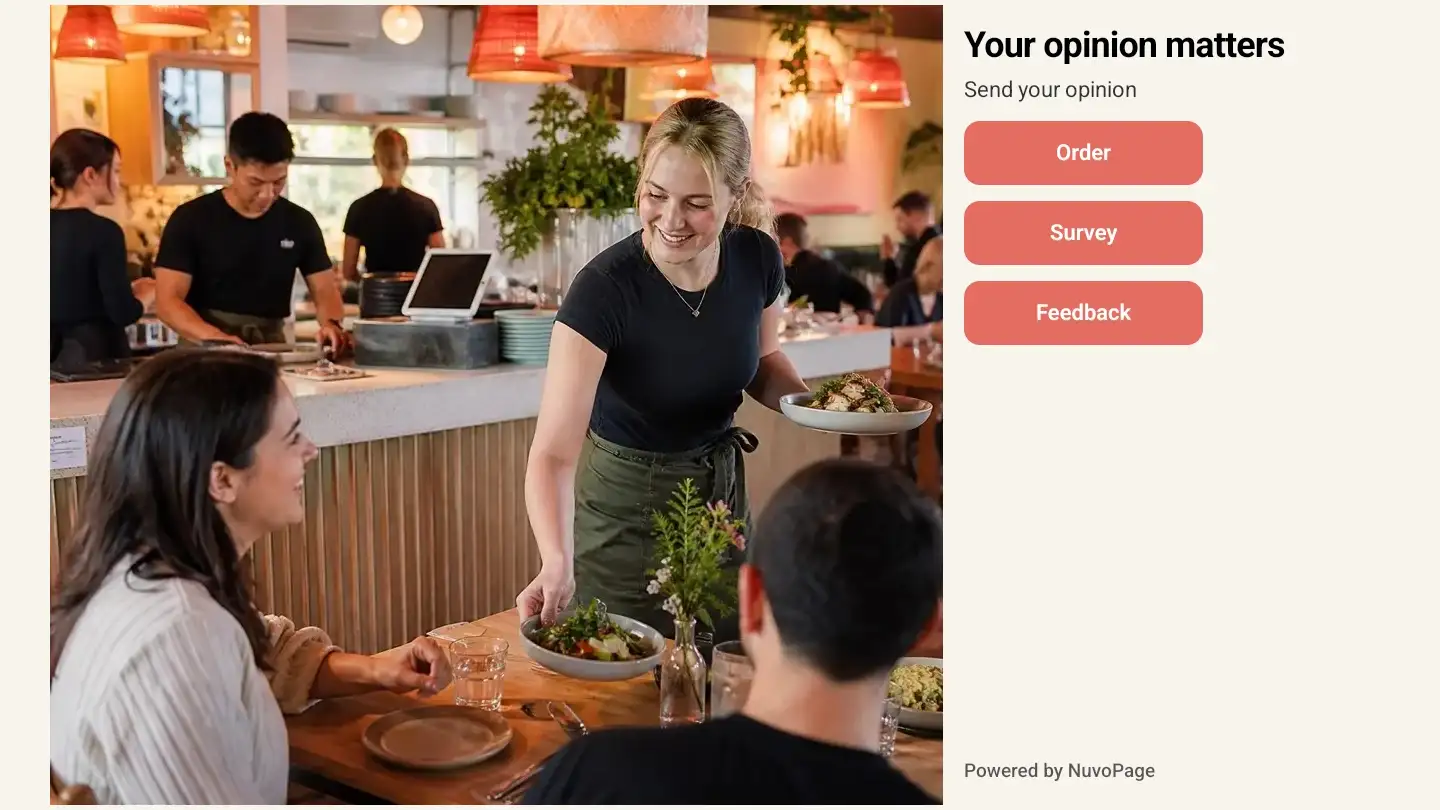
NuvoPage Signage supports up to three buttons on an image. Use labels that describe the action: “Send an enquiry,” “Request a booking,” or “Share feedback.” Avoid vague labels such as “Click here,” which make people guess.
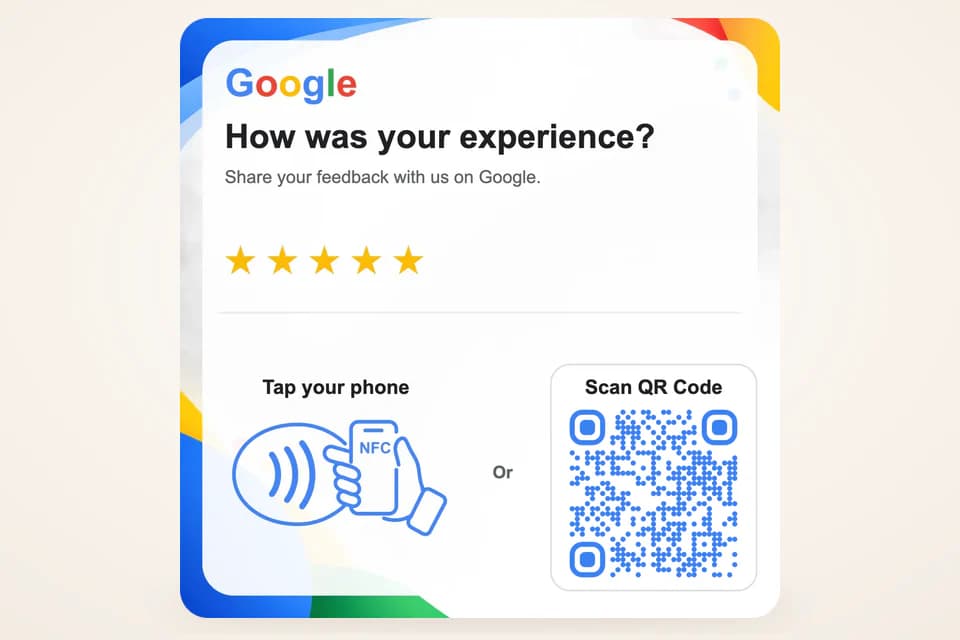
You can also choose up to two QR codes instead of buttons. This works well when customers prefer their own phones or need longer to complete a form. It also leaves the display free for the next person. See the Signage examples to compare both approaches.
Test it like a customer
Open each button, complete the form with sample information, and confirm that the submission reaches the right place in your dashboard. Return to the slideshow and check the next action. Test the internet connection where the kiosk will stay, not only at your desk.
Protect privacy on a shared screen. Ask only for information needed for the task, explain who receives it, and position the tablet so nearby people cannot easily read someone else’s details. Keep account management and staff credentials off the customer-facing device.
Build around a real routine
Start with one screen and one action. Watch where people hesitate, then improve the wording or shorten the form. A kiosk is most helpful when staff know what happens next and check incoming requests regularly.
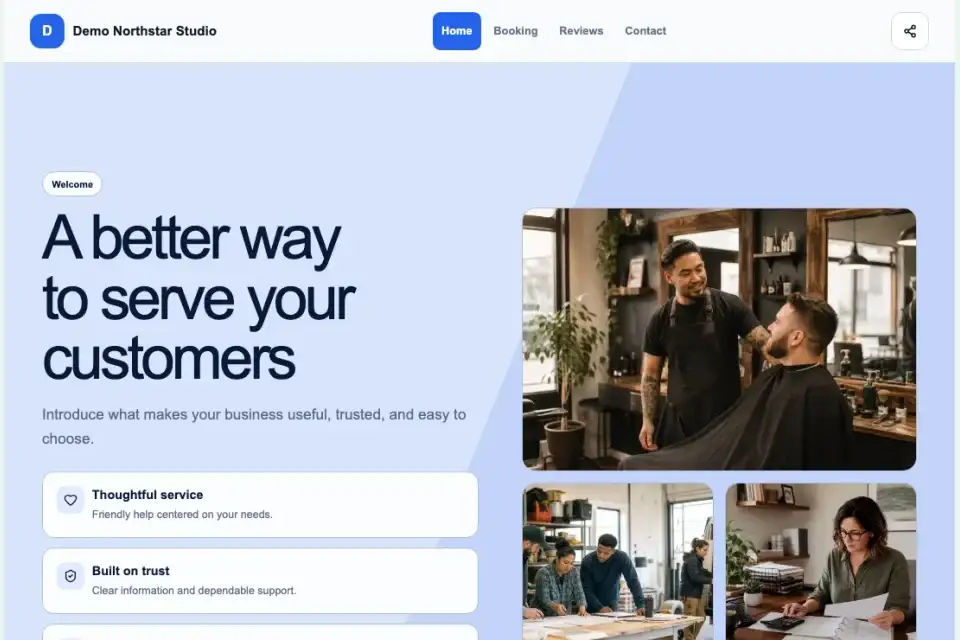
Explore Pages & Websites to choose the right destination. Free can demonstrate an enquiry kiosk with Contact Us; Starter unlocks all 21 page types, including new Booking, Order, and Survey pages. Compare plans before expanding your setup.