Know What Is in Your Freezer: Scan, Store, and Consume
Track freezer contents with NuvoPage My Apps. Scan product barcodes, record Store or Consume actions, and organise quantities and separate batches.
Stop relying on memory when the door is closed
You return from shopping and put several items in the freezer. Later, someone takes a package out for dinner. A container of homemade soup goes into a lower drawer, behind something that was already there. By the next shopping trip, nobody is quite sure what remains.
The problem is often less about organising the shelves than keeping a shared record of the small changes. Each change is simple, but the combined picture becomes difficult to remember.
A freezer inventory in NuvoPage My Apps gives those changes a short routine: scan the freezer’s QR code, identify the product, choose Store or Consume, and submit. The aim is a practical record that fits the moment food goes in or comes out.
Give each freezer its own starting point
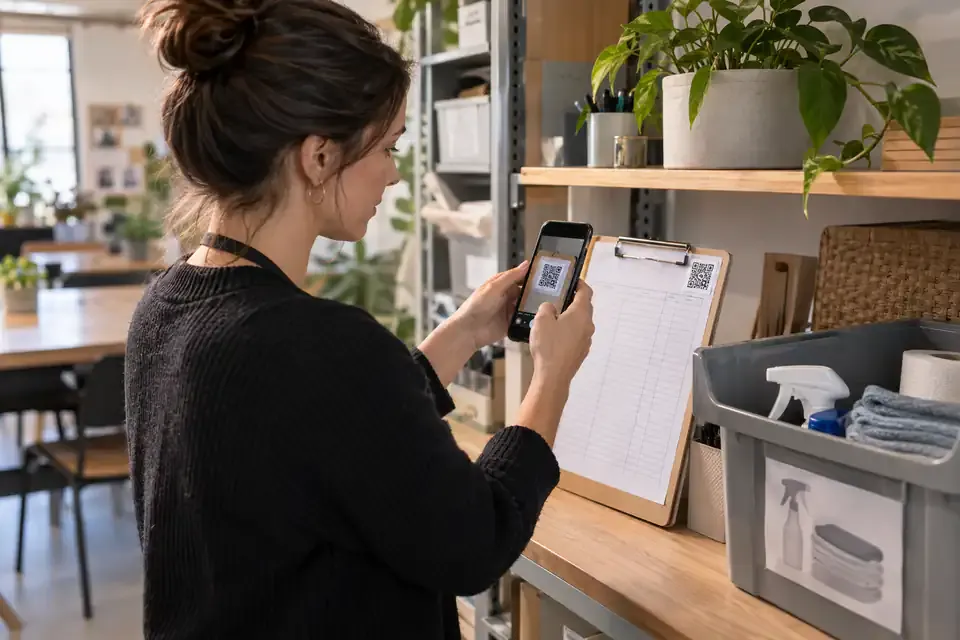
Create the app from the Freezer Inventory template and name it after the appliance or storage area, such as “Kitchen Freezer” or “Garage Freezer.” Attach its QR label where people can see and scan it without searching.
The label opens that freezer’s app in the browser. Visitors do not need a NuvoPage account to use an app configured for Anyone access. If you prefer contributor labels, the owner can enable simple PIN access instead.
Keep separate freezers separate when their contents need independent balances. A package stored in the garage should not appear as available in the kitchen merely because both appliances contain the same type of product. The physical QR label supplies that location context.
Understand the two different scans
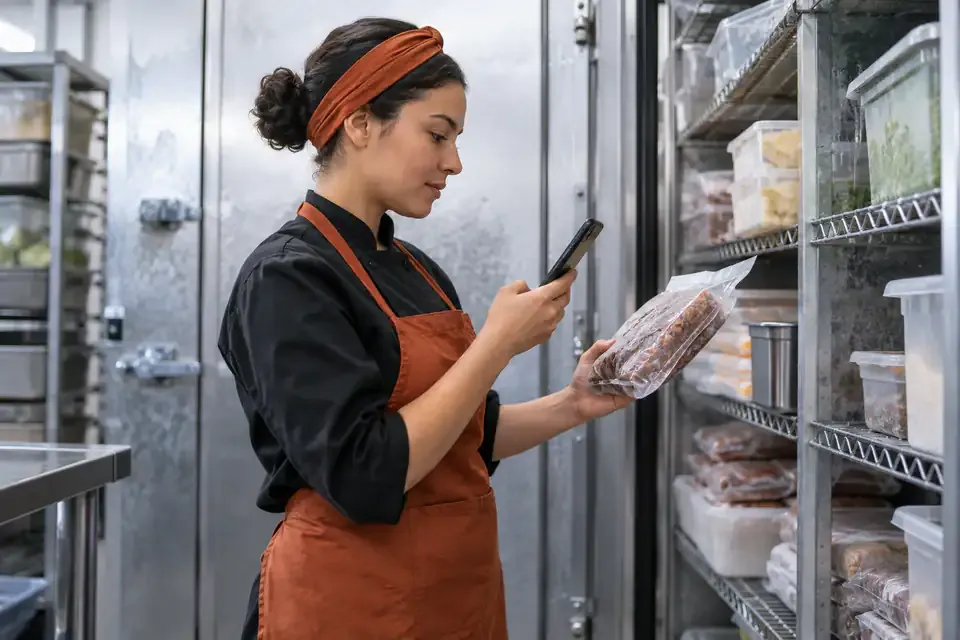
The freezer QR code and the product barcode have different jobs. The freezer QR opens the correct app. The product barcode helps identify what you are storing or consuming after the app is open.
A retail barcode is a useful identifier, but it is not a complete inventory record. It does not automatically tell NuvoPage how many packages you own, which drawer they occupy, or the date printed on the particular package in your hand.
The first time you scan an unfamiliar product, add its name and unit. NuvoPage can then recognise that saved product on later scans within your workspace. You do not need an external product database for this basic routine to work.
Store a product with a few useful details
Choose Store after identifying the product. The quantity can begin at one, with an easy way to change it. Use a unit that matches how people actually handle the food: pack, bag, container, or portion.
Add relevant details such as the date stored, the drawer, and an optional package date or owner-entered use-by date. Keep the form focused. If most items do not need a note, leave notes optional rather than making people type a sentence for every addition.
Check the product and quantity, then submit. Scanning the barcode alone should not change the balance. The confirmation is the point at which the app records that the food has actually been placed in the freezer.
Keep separate batches when dates differ
Two packages of the same product may have different dates. Treating them as one undifferentiated total can hide information you wanted the inventory to preserve.
Suppose you already have two bags of peas in one drawer and add three more from a later purchase. They share a barcode, but you may want separate batches because their dates or storage details differ. The product total is useful for shopping; the batch details are useful when choosing a particular package.
Record the date shown on the package or a date you intentionally assign. Do not expect an ordinary product barcode to supply it. Keep labels clear about what a date means, and use the app as a record of that information rather than as an automatic assessment of food condition.
Consume from the batch you actually take
When removing something, open the same freezer app, scan or search for the product, and choose Consume. Adjust the quantity if you take more than one unit.
If there is one available batch, the selection is straightforward. If several exist, choose the batch that matches the package you are taking. A suggested earlier date can help organise the list, but the recorded movement should follow the physical item, not an assumption about which package someone picked.
After submitting, the app reduces that batch’s quantity and keeps the movement in its history. An empty batch can appear as Used up rather than remaining in the default list of available food. Its previous entries remain useful when checking how the balance changed.
Include homemade food and open packages
Not everything in a freezer has a barcode. Homemade meals, bakery items, and divided portions can be added manually with names people will recognise. “Vegetable soup — large container” is more useful than a label only the person who made it understands.
Choose a consistent unit before you begin. If one container counts as one unit, consuming half requires a quantity convention everyone understands. You might allow decimal amounts, or portion the food physically and count portions instead.
Avoid switching between bags, servings, and kilograms as though they were interchangeable. The inventory needs a stable meaning for its numbers. A simple counting rule that matches household behaviour is easier to maintain than an ambitious measurement system nobody follows.
Reconcile the list with the real freezer
An inventory stays useful only when recorded movements match actual changes. Occasionally compare a shelf or drawer with the app. If something was taken without an entry, correct the record instead of leaving an unexplained balance indefinitely.
Keep corrections distinguishable from normal consumption. A discarded package, a counting mistake, and food used for dinner are different events, even when each reduces the total. Clear notes help you understand those differences later.
Start with one freezer and a manageable group of items. Test a complete cycle: Store three, Consume one, and confirm that two remain. Then build the routine around everyday use. NuvoPage gives the record a convenient place to live; the short habit of scanning and submitting keeps it connected to the food behind the door.