Keep Equipment Maintenance History Where the Equipment Is
Give equipment a useful maintenance history with NuvoPage QR logs. Record inspections, repairs, and condition notes beside the item.
Make the previous work easier to find
Someone asks when a machine was last checked. A colleague remembers a repair, but the details are in an old message. The person who arranged it is away, and the invoice does not explain the observation that led to the work.
This kind of missing context can affect small workshops, shared offices, rental properties, and even household appliances. The information exists in fragments, but it is not easy to find while standing beside the equipment.
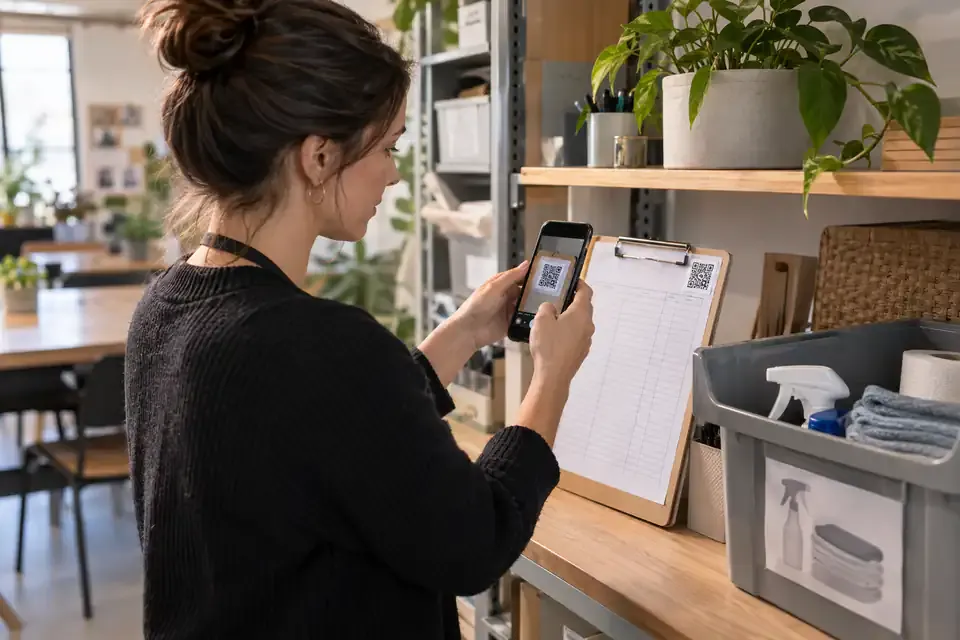
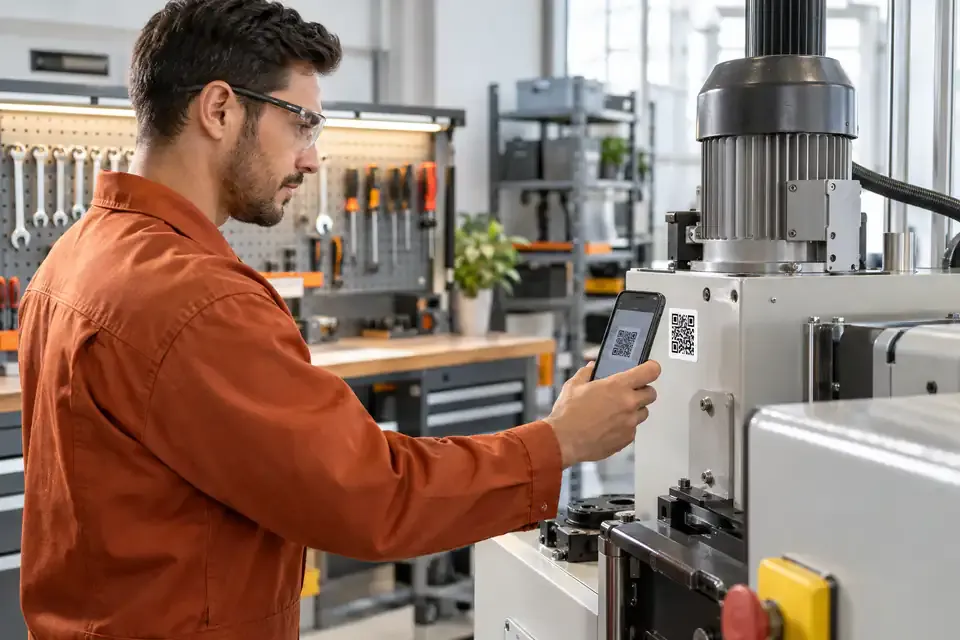
A QR-linked equipment log gives those observations a consistent place. Scan the label on the item and open its history or entry form. NuvoPage My Apps helps you build that practical record without beginning with a full asset-management project.
Start with equipment that creates recurring questions
You do not need to label every object on the first day. Begin with equipment that receives repeated checks, occasional repairs, or handovers between people. Ask which items most often lead to “What happened last time?”
Create an Equipment Log app with a recognisable name. Include a familiar location or equipment number when several units look similar. A clear title helps someone confirm that the physical label and the online record belong together.
The first goal is continuity. You want the next person to understand relevant previous work and leave a useful entry of their own. That is a more manageable starting point than trying to catalogue every specification, cost, and supplier relationship at once.
Separate the item’s identity from its history
Some information describes the equipment itself: its name, location, internal label, or a short identifying description. Other information describes an event: an inspection, maintenance visit, reported issue, or repair.
Keep that distinction clear in the app. Stable context belongs in the title, instructions, or appropriate item details. A new observation belongs in a dated entry. People should not need to retype the equipment name each time they record work.
This structure makes the history easier to read. Instead of a series of disconnected notes, you have a sequence attached to one recognisable item. The QR label is the physical shortcut into that sequence.
Use a few event types that match the work
Start with a short set of activity choices such as Inspection, Maintenance, and Issue. These labels help readers understand what kind of entry they are looking at before opening the details.
Add a condition or status field only if people can use it consistently. “Needs attention” is useful when your team knows what should happen next. A long list of overlapping conditions can create more ambiguity than it removes.
The notes field should capture the relevant observation or work performed. Encourage plain descriptions: what was checked, what was noticed, and what was done. Avoid entries so vague that the next person must repeat the investigation simply to understand what the previous note meant.
Add notes that explain the condition
A clear note can make a damaged part, worn label, or visible condition easier to recognise later. Identify the relevant area when a general description could refer to several similar parts of a machine.
Write enough context to show which part is being documented and why the observation matters. An unexplained phrase such as “looks wrong” may be difficult to interpret months later.
Do not require a long explanation for every routine entry unless the workflow genuinely needs one. Keeping ordinary checks quick makes the log more comfortable to use.
Record an issue and its follow-up clearly
An issue report is the beginning of a record, not proof that the problem has been resolved. Keep the initial observation available and add later work as a separate entry with a clear reference to what it addresses.
For example, an entry might describe an unusual sound observed during use. A later maintenance entry can record the inspection performed and the work completed. Readers can then follow the sequence rather than seeing the original note replaced with a short “fixed.”
Use your established procedure for deciding whether equipment should remain in use and who needs to be informed. The log supports that procedure with information; recording a concern does not automatically notify a responsible person or create a service appointment unless those capabilities are explicitly part of your setup.
Keep access practical for the people involved
The owner can let anyone contribute, use simple contributor PINs, or keep entry access owner-only. Equipment history remains available in the authenticated workspace.
For a small team, a PIN associated with a familiar name can make entries easier to organise without requiring each contributor to create a NuvoPage account. If people share a PIN, the label represents that shared access rather than verified individual identity.
External service visitors do not automatically need broad access to your records. Choose the contribution and viewing arrangement that serves the task. Keep app settings, corrections, and ownership management with the owner through the normal account.
Place and maintain the label carefully
Attach the label where it can be scanned during ordinary use without obscuring equipment instructions, warnings, controls, or identifying plates. The chosen position should fit the item’s environment and your existing handling procedures.
Use a clear instruction such as “Equipment log — scan to add or view an entry,” adjusted to the access you provide. The title on the opened page should match the label so a user can catch a mismatch before submitting.
Test after placement, not just before printing. Inspect labels occasionally for wear or damage, and check their destinations after moving equipment. A reusable online record is only convenient when its physical shortcut remains readable and correctly assigned.
Review history for useful context
Before arranging another repair or investigating a repeated observation, review the relevant entries. Look for previous descriptions, dates, and work recorded against the same item. This can help you prepare better questions and explain the background to the person handling the next task.
Do not mistake a log for automatic monitoring. It contains what people entered, and an absence of entries does not establish that equipment had no issues. Treat it as a useful record with a clear source.
Start with one piece of equipment and a few real events. Refine the fields until another person can understand the history without a separate explanation. NuvoPage’s QR log then gives the equipment a practical memory that stays accessible where the work happens.