Who Cleaned It Last? Simple QR Logs for Shared Spaces
Create simple cleaning logs for shared rooms with NuvoPage. Use QR labels, short checklists, optional notes, and clear completion history.
Replace the question with an easy place to look
A shared kitchen has been used all afternoon. Someone wiped the counters, another person refilled supplies, and a third notices that the bin still needs attention. When the next person arrives, it is difficult to tell what has been completed and what remains.
The same uncertainty appears in washrooms, meeting rooms, rental spaces, and small workplaces. A verbal update can help in the moment, but it is easy to miss when people work at different times.
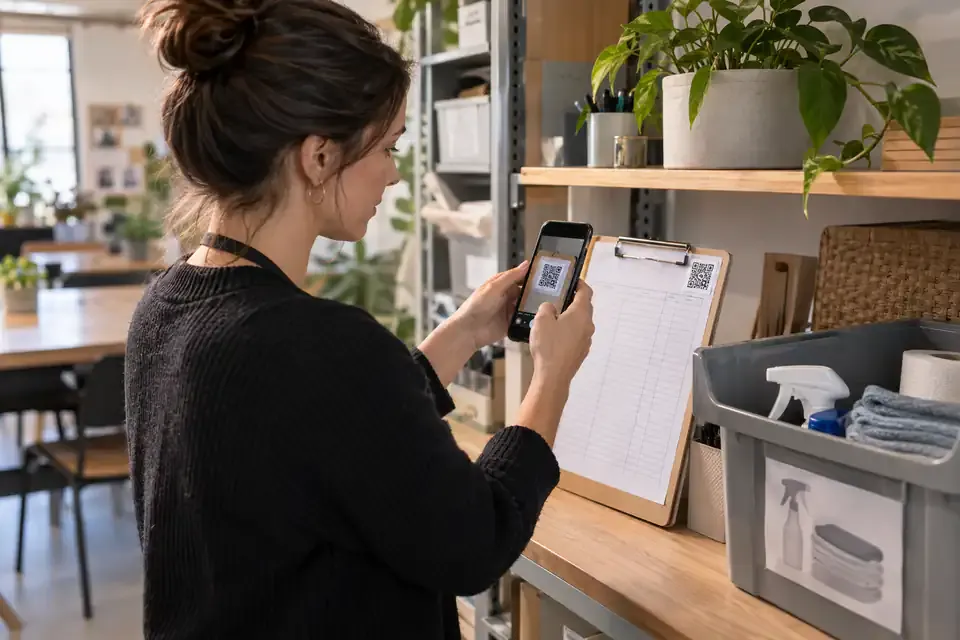
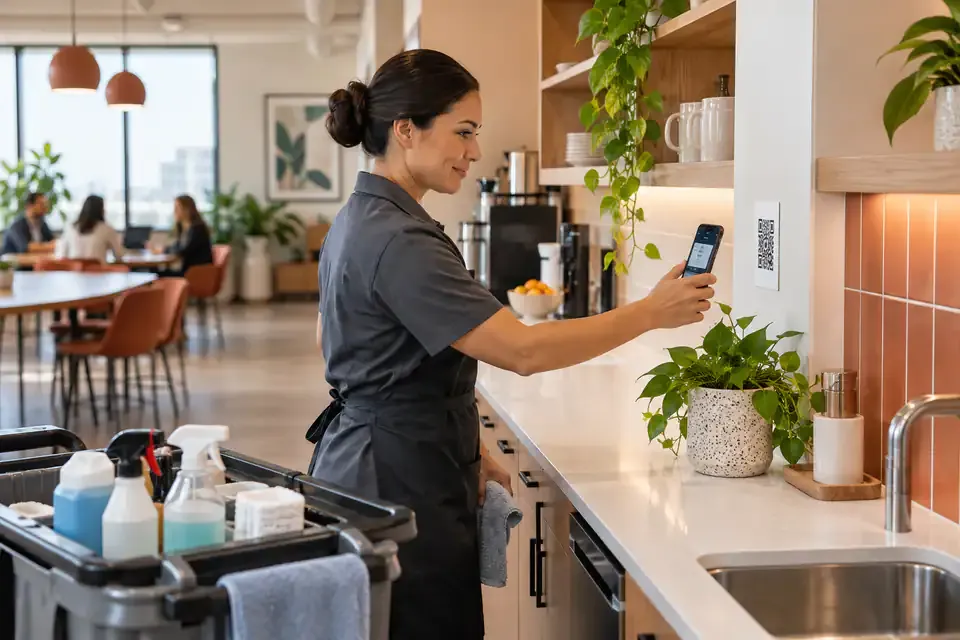
A QR cleaning log gives the space a simple record. Scan the label, open the checklist, and record the work completed. With NuvoPage My Apps, the information belongs to the room rather than to whichever message thread happened to be used that day.
Name the space the way people recognise it
Create a Cleaning Log app for a specific room or area. “Ground Floor Washroom” and “Staff Kitchen” are clear starting names. If several spaces look similar, include a familiar location detail on both the app and its printed label.
This context should be visible as soon as the page opens. A person should be able to confirm that they are recording work for the right area before touching the checklist.
Avoid beginning with a single large form covering every room in a building unless that genuinely matches the work. A label at each relevant place can remove repeated searching and selection. The task becomes easier when the destination already knows which space the person is standing in.
Describe tasks so completion means something
“Cleaned” can mean different things to different people. A short checklist makes the intended work clearer: counters wiped, bin emptied, floor checked, supplies replenished. Use labels that reflect your own procedures and the actual room.
Keep each item understandable without a long explanation. If a task needs detailed instructions, place them where staff can find them, while keeping the recording form focused on confirmation and relevant notes.
Separate tasks that may be completed independently. Refilling soap and cleaning a floor are different actions, even when they happen during the same visit. A useful record lets the next person understand what was done without interpreting one broad checkbox as proof that every possible task was completed.
Leave room for incomplete work and problems
A form should allow an honest record when something could not be finished. If supplies are missing or an issue needs attention, people need a place to say so instead of feeling pushed to mark everything complete.
An optional note can explain the situation when the condition is difficult to describe. It should serve a purpose rather than be required for every routine visit.
Make the difference between recording and resolving clear. Adding a note about a blocked dispenser does not fix it or automatically tell the right person unless your workplace has an established follow-up process. Decide how staff should communicate issues that need action alongside maintaining the log.
Make submission fit the end of the task
Place the label where someone can scan it after completing the work, without crossing the building or finding a shared device. Opening a browser on a phone keeps the recording step close to the activity.
The person checks completed items, adds any relevant note, and submits. A clear confirmation tells them the entry has been saved. If saving fails, they should know that the record still needs attention rather than assuming the first tap succeeded.
Keep the checklist in a practical order. If staff usually work through tasks in a particular sequence, arranging the form similarly makes it easier to review before submission. Small details like this can reduce the temptation to rush through a familiar-looking form.
Use contributor labels without account setup
For a small team, a simple PIN associated with a person label can be enough for everyday coordination. The person opens the app, enters the PIN when required, and completes the form without creating a NuvoPage account.
If the PIN is shared, the resulting label is shared too. Treat it as a convenient way to organise contributions, not a verified identity record. The owner can change PINs and control which apps a contributor can use.
Some spaces may use Anyone contribution instead. Choose deliberately based on how the label will be accessed. A label in a room open to customers creates a different participation setting from one inside a staff-only area.
Decide what the next person should see
Public contribution and workspace history are separate. Team members can add cleaning entries from the label while the authenticated workspace keeps the full history for review.
The owner can review the latest recorded completion and use relevant notes to coordinate follow-up, such as replacing missing supplies.
Remember what the history represents: submitted records. No entry could mean that work was missed, or that someone forgot to record it. Use the information to ask useful questions and improve the routine rather than assuming the digital list can observe the room by itself.
Review the process as well as the results
After a week or two of use, ask the team which parts are helpful. Are the task labels clear? Is the QR code in a convenient position? Do people keep writing the same note because a field or option is missing?
Use those observations to improve the form. Repeated notes about supply shortages may suggest a practical change to replenishment. Repeated confusion about a checklist item may mean the wording needs attention.
Avoid adding fields simply because the table supports them. Every required input adds work to every future entry. Keep the form small enough that people can complete it accurately at the end of a real cleaning task, including on a busy day.