QR Codes or NFC Tags: Which Should You Use?
Compare QR codes and NFC tags for everyday business use. Choose practical placements and connect customers to NuvoPage pages, links, and apps.
Choose the interaction before the technology
You want someone to open a page while standing at a counter, looking at a sign, or using a piece of equipment. A QR code and an NFC tag can both connect that physical moment to an online destination. The better choice depends on where the invitation appears and how the person will use it.
Someone looking at a poster may find scanning natural. Someone standing beside a small card may prefer to tap their phone. In some settings, providing both methods is the easiest way to accommodate different habits and devices.
Start with the action you want to make easier. Once you know the destination and the setting, choosing the physical method becomes a much smaller decision.
How a QR code connects the visitor
A QR code is a printed or displayed pattern that a compatible camera or scanner can read. When it contains a web address, the phone can offer to open that address. The person usually points the camera at the code and follows the prompt.
The visible pattern makes the scanning area clear. You can print it on a poster, card, package insert, or label, and the design can include an instruction explaining what will open.
The surroundings still matter. A code needs enough clear space, a practical size, and suitable contrast. A tiny code in a busy design can be frustrating. Test the finished material from a normal viewing distance, particularly when the code will be printed on a surface that reflects light or becomes worn.
How an NFC tag connects the visitor
An NFC tag can store a link that a compatible phone reads at close range. The person brings the phone near the tag’s reading area and follows the notification to open the destination.
Because there is no visible pattern to aim a camera at, mark the tap area clearly. A short instruction such as “Tap here to open” helps explain the action. A customer should not need to guess which part of a sign contains the tag.
The experience depends on the phone, tag, and placement. Test the actual product where it will be used, including its holder or mounting surface. Do not assume that a tag tested on a desk will behave identically after installation in a different position.
Compare them in the actual setting
Think about reach, visibility, and the space available around the object. A QR code on a noticeboard can be scanned without touching the board. An NFC tag needs the phone close to its reading area, so it belongs somewhere people can comfortably reach.
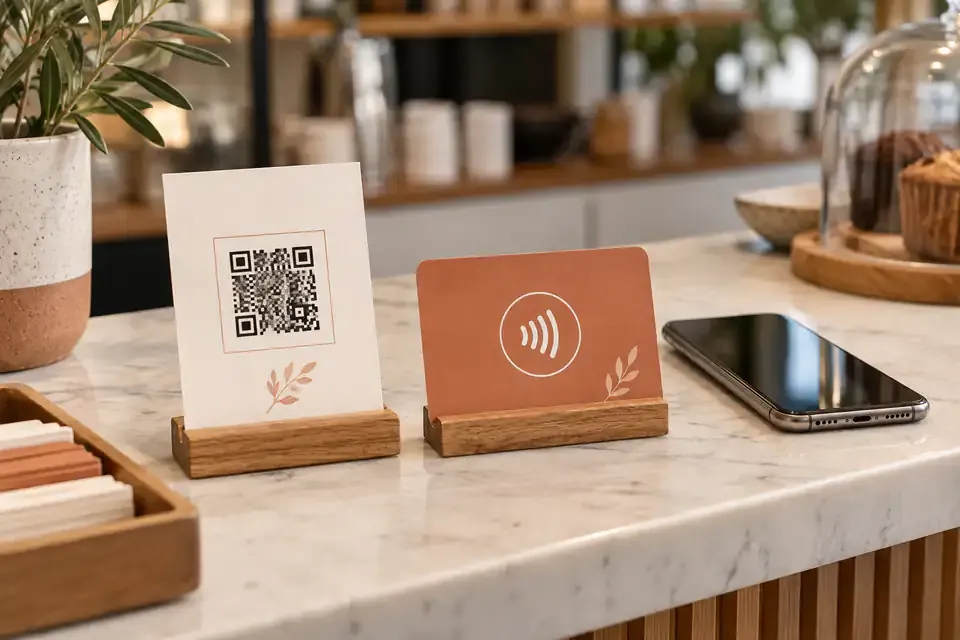
A counter card can support either method. A large window sign may favour QR because a visitor can see and scan it without bringing the phone directly against the surface. A compact equipment label may benefit from both when the person is already standing beside the item.
There is no need to declare one method universally better. Choose the one that makes sense at that location, then check whether a second option would provide a useful fallback.
Let the wording explain the destination
“Scan me” tells a visitor what to do but gives little reason to do it. “Scan to view the menu” is more useful because it connects the action to an outcome. The same principle applies to NFC instructions.
Use wording that reflects the task: view contact details, request a booking, share an experience, or open an equipment log. Keep the instruction beside the code or tap area rather than on another part of the display.
If both methods lead to the same place, say so with a single invitation such as “Scan or tap to open the page.” Customers do not need to understand the difference between the technologies before choosing the method they find convenient.
Use NuvoPage to manage what opens
NuvoPage connects physical access methods with online content. My Pages provides focused public experiences, while My Webs combines pages into a small website. My Links offers reusable destinations, and My Cards helps manage connected physical QR and NFC products.
A public page can be a good destination when someone needs a single task, such as finding contact information or completing a request. A small website is more suitable when they need several related pages. Choose the destination according to the reason they scanned or tapped.
Where you need future flexibility, connect through a reusable link. Updating that link’s destination can keep the physical item useful, provided the new destination remains consistent with what the printed invitation promises.
Provide two methods without creating two journeys
A card with QR and NFC does not need two different experiences. Both can open the same link, giving visitors a choice of how to reach it. This keeps the content easier to manage and avoids one method accidentally showing outdated information.
Test both after making a destination change. A working QR code does not prove that the NFC tag contains the correct link, and a successful tap does not confirm that the printed pattern is readable.
Consider including a short readable address as well. It can help someone who cannot use the camera or NFC at that moment. The purpose is to make access straightforward, so an additional simple route can be more useful than insisting on one particular interaction.
Keep the page as simple as the invitation
Opening a destination quickly is only useful when the page helps the visitor finish. A clear QR label can still lead to a confusing page with too many buttons, an unrelated introduction, or a form asking for unnecessary details.
Match the first screen to the physical context. A contact card should show contact actions prominently. A booking sign should make the request easy to find. A review card should clearly identify the review destination.
Visitors do not need a NuvoPage account to view its public pages, but any external service you link to controls its own access requirements. Avoid promising that every action can be completed without sign-in simply because the initial page opens in a browser.
Run a short test before rolling out
Place one sample where you intend to use it and ask someone unfamiliar with the setup to try it. Do they notice the instruction? Can they reach the tap area? Does the QR code scan from where they naturally stand?
Then follow the full journey on the phone. Check the business or item name, the main action, and the resulting screen. Test under ordinary conditions rather than only in ideal lighting with a carefully positioned device.
Keep a simple maintenance habit after rollout. Clean or replace damaged labels, check important destinations, and update information when the underlying service changes. Start with the method that suits your setting, add a fallback when helpful, and let NuvoPage connect that small physical invitation to a useful online experience.